 Tailscale Integration Guide
If your organization uses Tailscale to manage private network connectivity, this integration pulls device inventory and directory data into Openlane so you have visibility into who is on your tailnet and what devices are enrolled, supporting access control and endpoint evidence.
Key Capabilities
- OAuth Authentication: Connects using a scoped OAuth credential from the Tailscale admin panel, so there are no long-lived API keys to manage and access is scoped to specific read-only operations.
- Directory Sync: Reads users from your tailnet, giving you the identity baseline for access reviews and onboarding/offboarding evidence.
- Asset Sync: Ingests enrolled devices with route and posture attribute metadata, supporting device inventory and endpoint visibility.
- Vendor Creation: If the Tailscale vendor record does not exist in Openlane, the integration creates it automatically on first sync.
- Flexible Group Sync: Group sync can be disabled independently if you only need user and device data.
Prerequisites
- Tailscale admin access to create OAuth credentials under Trust credentials.
Step-by-Step Setup
Step 1: Create a Tailscale OAuth Credential
-
In the Tailscale admin panel, navigate to Settings > Trust credentials.
-
Click Create trust credential.
-
Select OAuth as the credential type.
-
Enter a description (e.g.
Openlane Integration).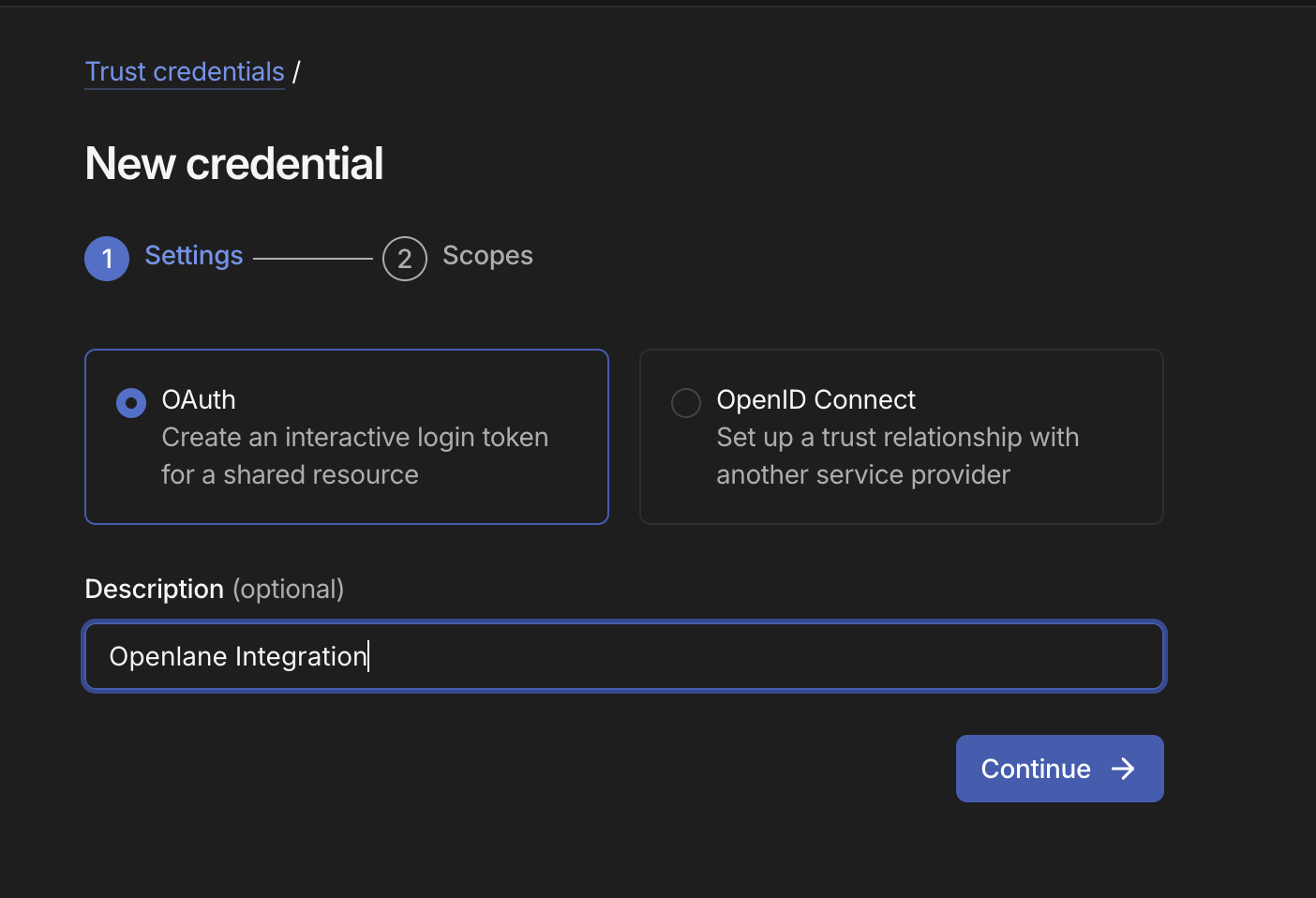
-
Click Continue to proceed to the Scopes step.
-
Select Custom scopes and enable the following scopes:
Scope Required For users:readHealth check and directory sync; always required policy_file:readPolicy file access for groups devices:core:readDevice inventory sync devices:posture_attributes:readDevice posture attribute sync devices:routes:readDevice subnet route sync 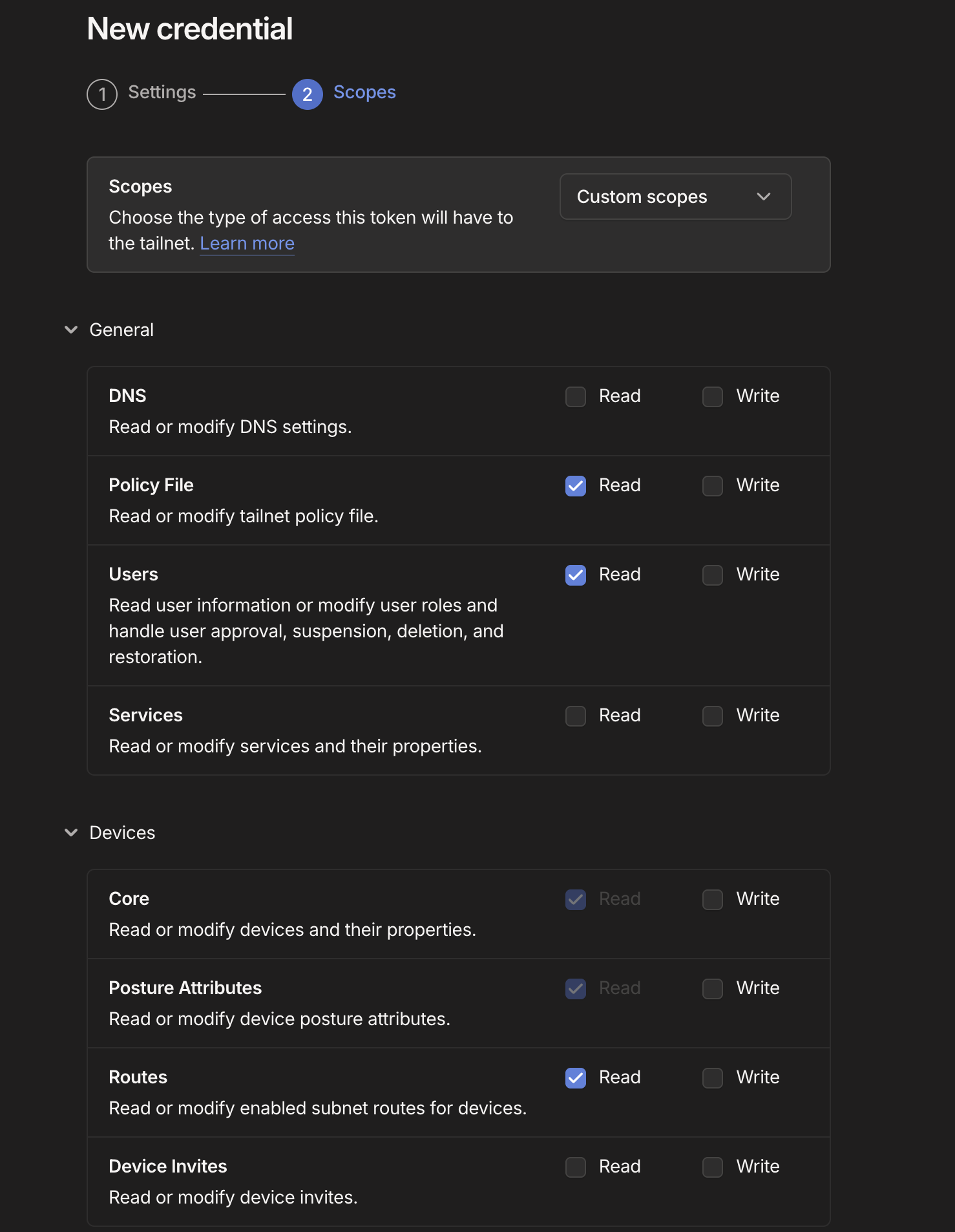
-
Click Create credential and copy the Client ID and Client secret; the secret is only shown once.
The users:read scope is required for the health check to succeed, even if you are not syncing users.
Step 2: Connect in Openlane
-
Navigate to Organization Settings > Integrations and find Tailscale.
-
Click Configure and enter the required fields:
Field Required Purpose clientIdYes OAuth client ID from the Tailscale trust credential clientSecretYes OAuth client secret from the Tailscale trust credential -
Click Save.
Step 3: Configure Sync Behavior
Optionally configure which data is collected and how records are filtered before ingestion:
Directory Sync
| Setting | Description |
|---|---|
| Disable Group Sync | When enabled, only users are synced; groups and memberships are skipped |
| Filter Expression | Optional Common Expression Language (CEL) expression evaluated against each record; only records that match are ingested (allows inclusion) |
Filter expression example:
payload.role == 'member'
Asset Sync
| Setting | Description |
|---|---|
| Disable | Turn off device ingestion without disconnecting the integration |
| Filter Expression | Optional CEL expression evaluated against each device record; only records that match are ingested |
Filter expression example:
payload.os == 'linux'
CEL expressions have access to the full raw payload for each record via payload.<field>.
Validate Connection
After saving, Openlane runs a health check against the Tailscale API and displays the result on the Installed tab of the Integrations page. You should see a Healthy badge confirming connectivity. If the badge shows Needs Attention, review the troubleshooting section below.
What Openlane Syncs
Openlane reads users, groups, and group memberships from your tailnet, along with every enrolled device and its metadata. All tailnet members are synced; groups and memberships are skipped when Disable Group Sync is enabled, which is useful if you only need user and device data.
Directory data feeds into User Access Reviews, onboarding/offboarding verification, and identity scope validation. Device data populates your asset inventory with endpoint context for access control evidence.
Disconnect
To remove this integration:
- Navigate to Organization Settings > Integrations
- Select the Installed tab
- Open the menu on the integration card and select Disconnect
- Go to Settings > Trust credentials in the Tailscale admin panel to revoke the OAuth credential
This removes stored credentials and stops all collection activity. You can reconnect later by configuring the integration again.
Troubleshooting
- Auth failures: verify the client ID and client secret are correct and that the credential has not been revoked in the Tailscale admin panel.
- Health check failing: confirm the
users:readscope is enabled; it is required for the health check even if directory sync is disabled. - Missing devices: verify the
devices:core:read,devices:posture_attributes:read, anddevices:routes:readscopes are all enabled on the OAuth credential. - Missing users: verify the
users:readscope is enabled on the OAuth credential. - No group data: confirm that Disable Group Sync is not enabled if you expect group and membership records.