 Stronta integration guide
If your organization runs security awareness training through Stronta, this integration exports training completion to Openlane as evidence. Each export creates an evidence record with the completion report attached, so training proof is ready for the controls it supports.
Capabilities
Stronta exports a training completion report to Openlane and creates an evidence record with the report attached, all in one action. You can also download the report as a CSV and upload it as evidence yourself.
Reports are scoped to a single training program, such as Cybersecurity Awareness, so each evidence record maps to the training it demonstrates. The connection uses an Openlane API token limited to evidence writes rather than a personal credential.
Prerequisites
- A Stronta workspace with the Security Training module enabled.
- Administrative access in Stronta to enable Admin Mode and save the Openlane API token.
- An API token that includes the
evidence:writescope. Creating an API token requires admin access and a payment method on file for your Openlane organization. See Programmatic Authentication.
Step-by-step setup
Step 1: Create an API token
- Navigate to Organization Settings > Developers > API Tokens.
- Click Create and name the token, for example
Stronta. - Set an Expiration and grant the
evidence:writescope. - Click Create Token and copy the value, which is shown only once.
Create a dedicated token for this integration and grant only the scopes it needs. A token with
evidence:write can create evidence in your organization.
Step 2: Connect Stronta to Openlane
-
Log in to app.stronta.com as an admin.
-
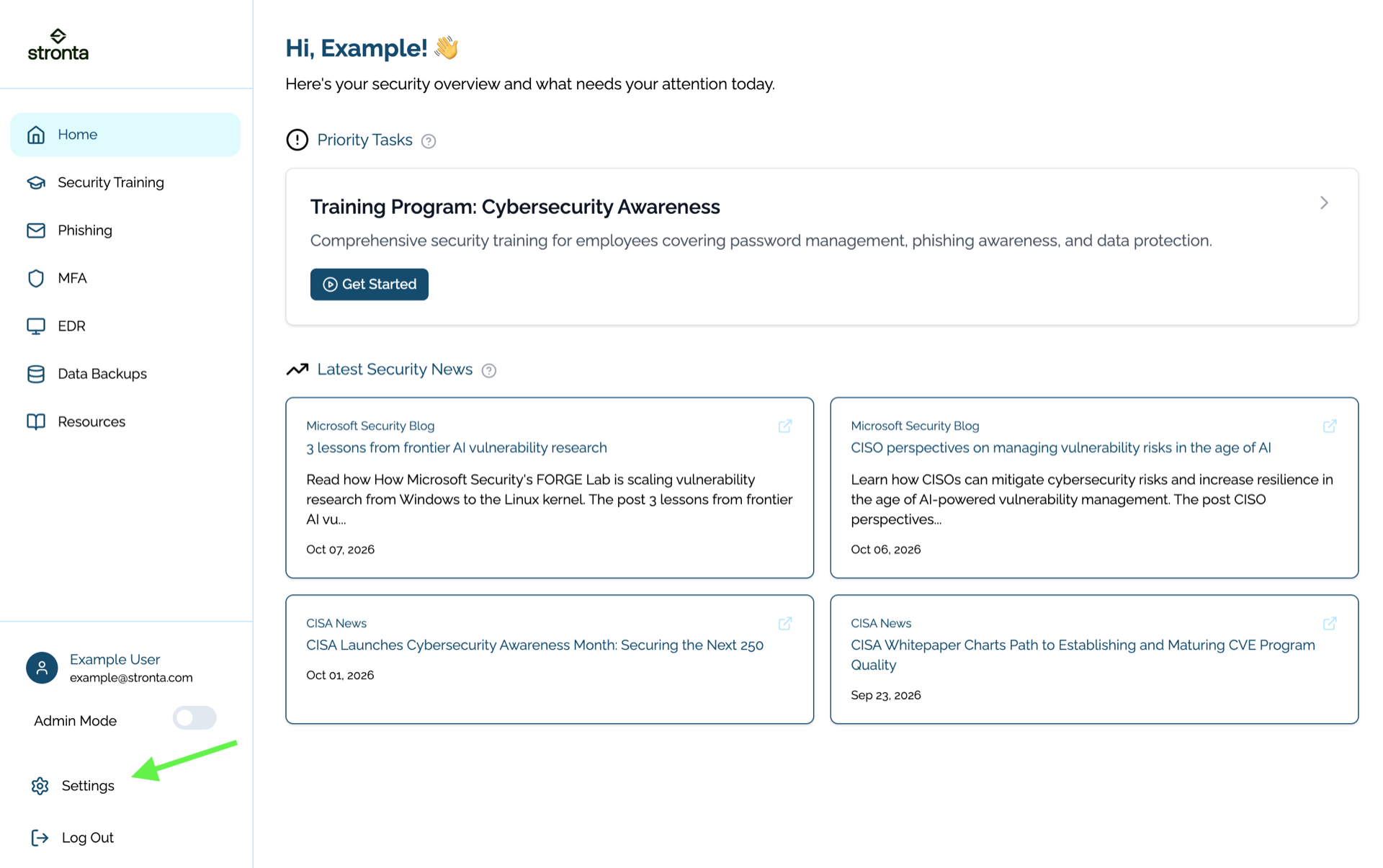
Click Settings in the left navigation.
-
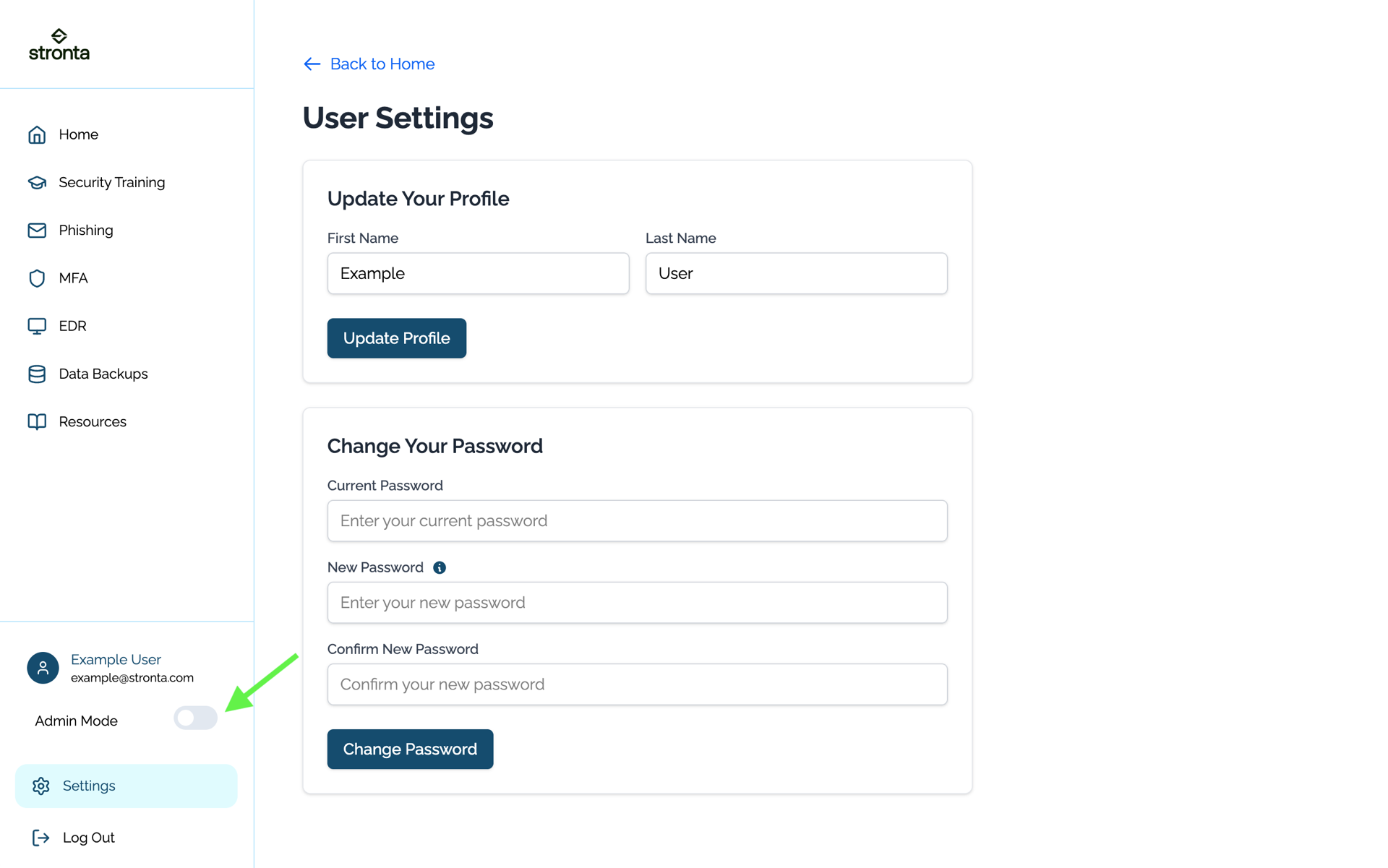
Enable Admin Mode with the slider in the left navigation. Admin Mode reveals the organization and integration settings.
-
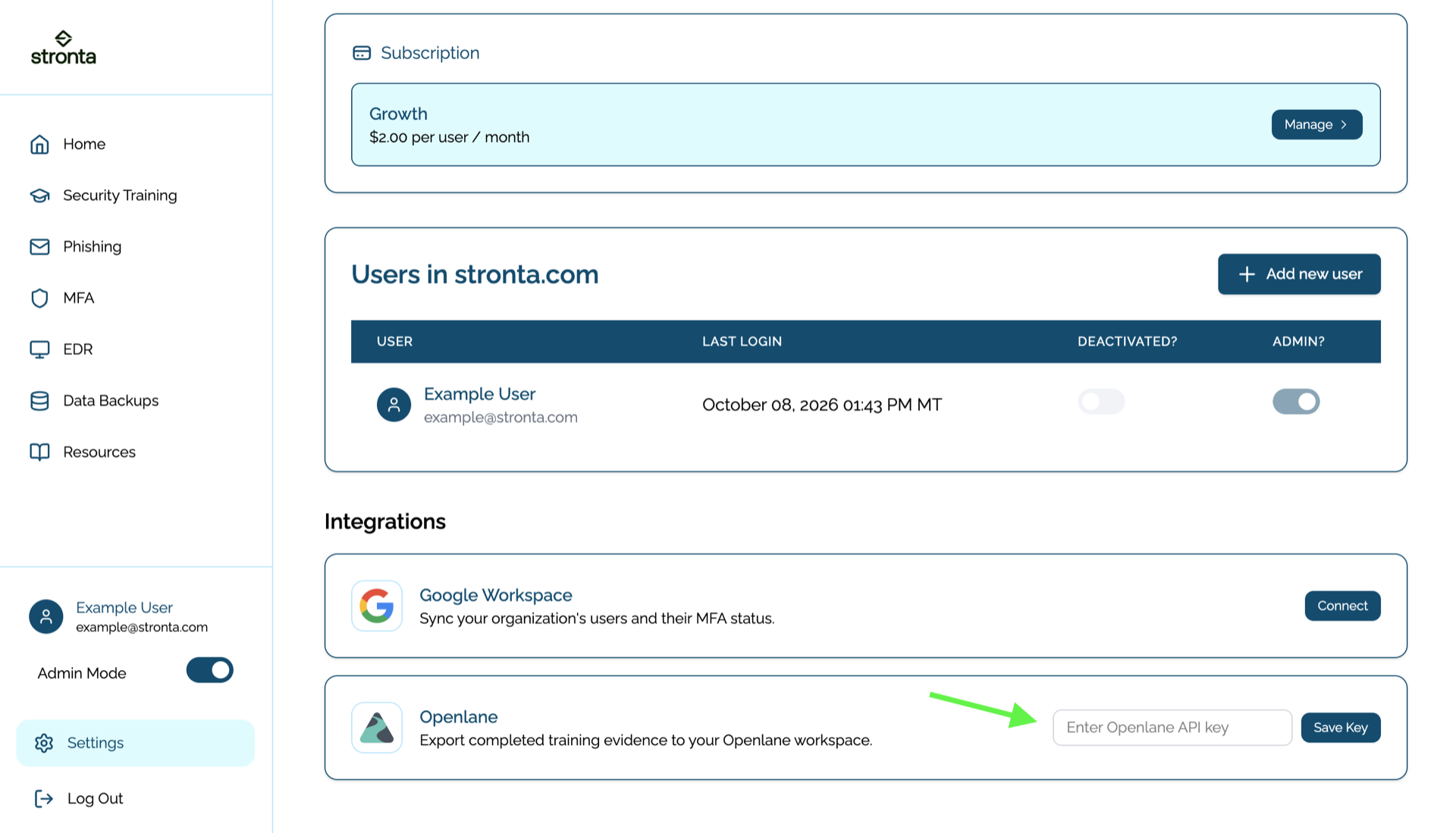
Find the Openlane integration, enter your API token in Enter Openlane API key, and click Save Key.
-
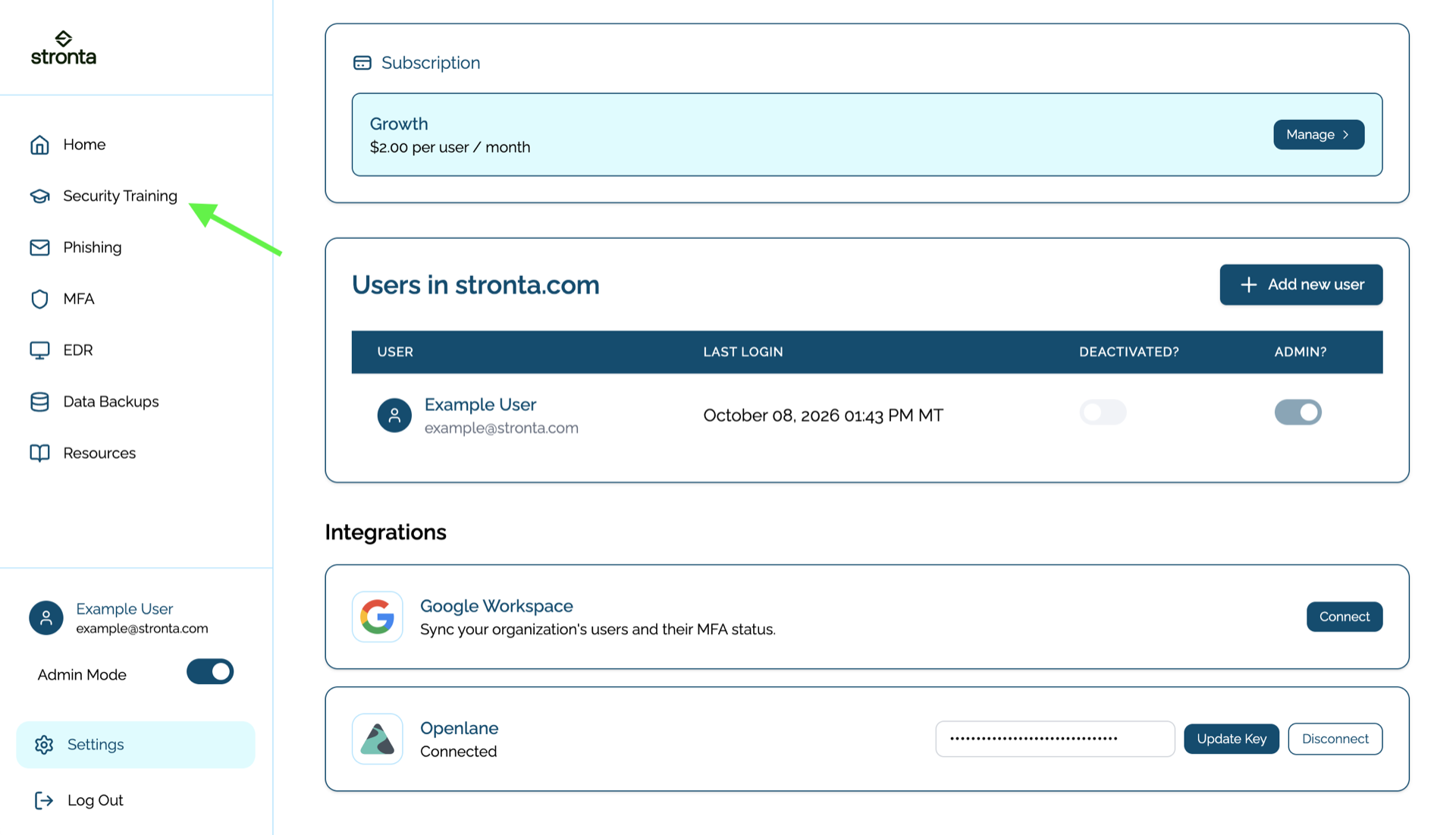
Confirm the integration shows Connected.
Step 3: Export training evidence
-
Click Security Training in the left navigation and open the training program you want to report on.
-
Click Export and choose an option.
Export option Result Export to Openlane Creates an evidence record in Openlane with the completion report attached Export to CSV Downloads the completion report so that you can upload it as evidence yourself 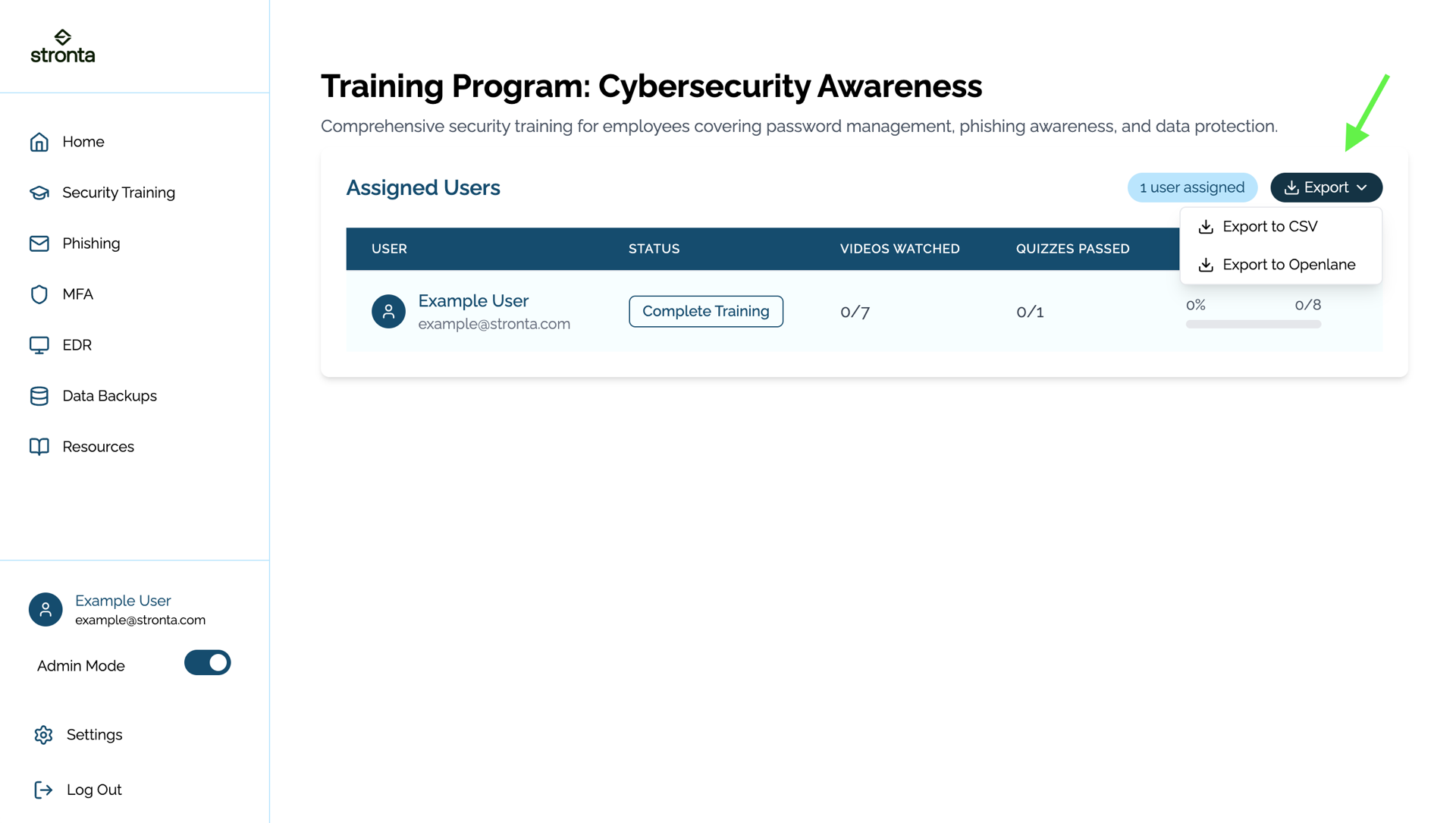
-
If you exported to CSV, upload the file via the Evidence Center.
Validate connection
Saving the API token connects the integration immediately, and the Openlane integration card shows Connected with controls to Update Key or Disconnect. To confirm the connection end to end, run Export to Openlane from a training program and check for the new record in Openlane.
What Openlane receives
Each export creates one evidence record in Openlane. The record is named after the training program, for example Stronta Training Program: Cybersecurity Awareness, and the completion report is attached as a CSV file with one row per assigned user:
Full Name,Email Address,Videos Watched,Video Percentage Complete,Quizzes Passed,Quizzes Percentage Complete,Overall Tasks Completed,Overall Completion Percentage
Example User,[email protected],7,100%,1,100%,8,100%
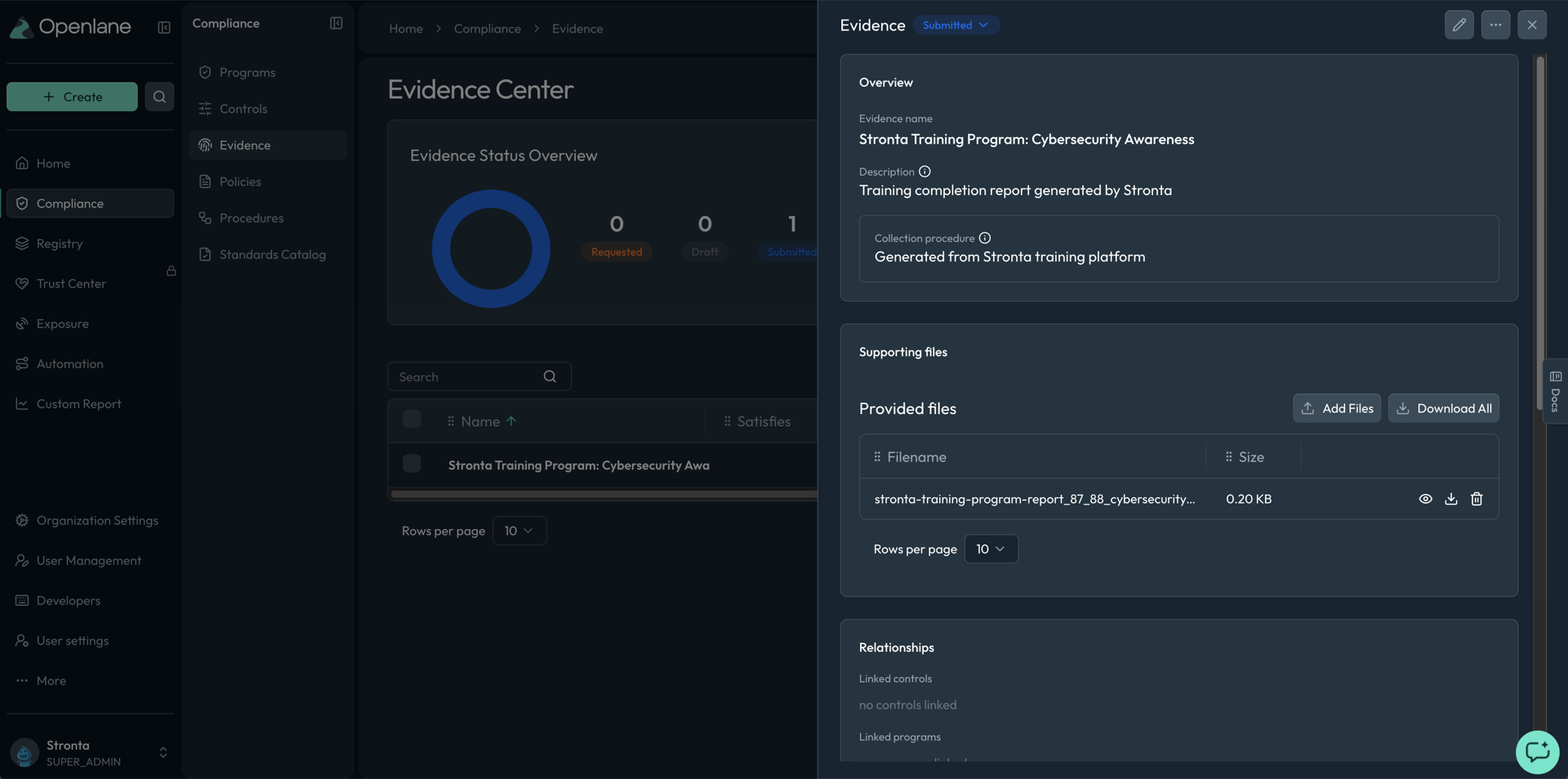
Link the record to the controls it supports. Exports do not link controls automatically, and unlinked evidence will not be seen by an auditor during a review.
Disconnect
To remove this integration:
- In Stronta, open Settings, find the Openlane integration, and click Disconnect.
- In Openlane, revoke the API token under Organization Settings > Developers > API Tokens.
Disconnecting stops new exports. Evidence records already created in Openlane remain, and you can reconnect by saving a new token.
Troubleshooting
- No evidence created: If an export fails, confirm that the Openlane token has not expired or been revoked, and that the token includes the
evidence:writescope. Then, use the Update Key button on the integration card within Stronta to resubmit the key, to ensure that the correct value has been provided. - Control reference missing: If an evidence record is missing its controls, you must create links manually; the integration does not yet automatically link exported evidence to controls.